

How to Set Up NVIDIA API Keys and Use Them with Ollama and OpenClaw on a Mac Mini (Part 1)
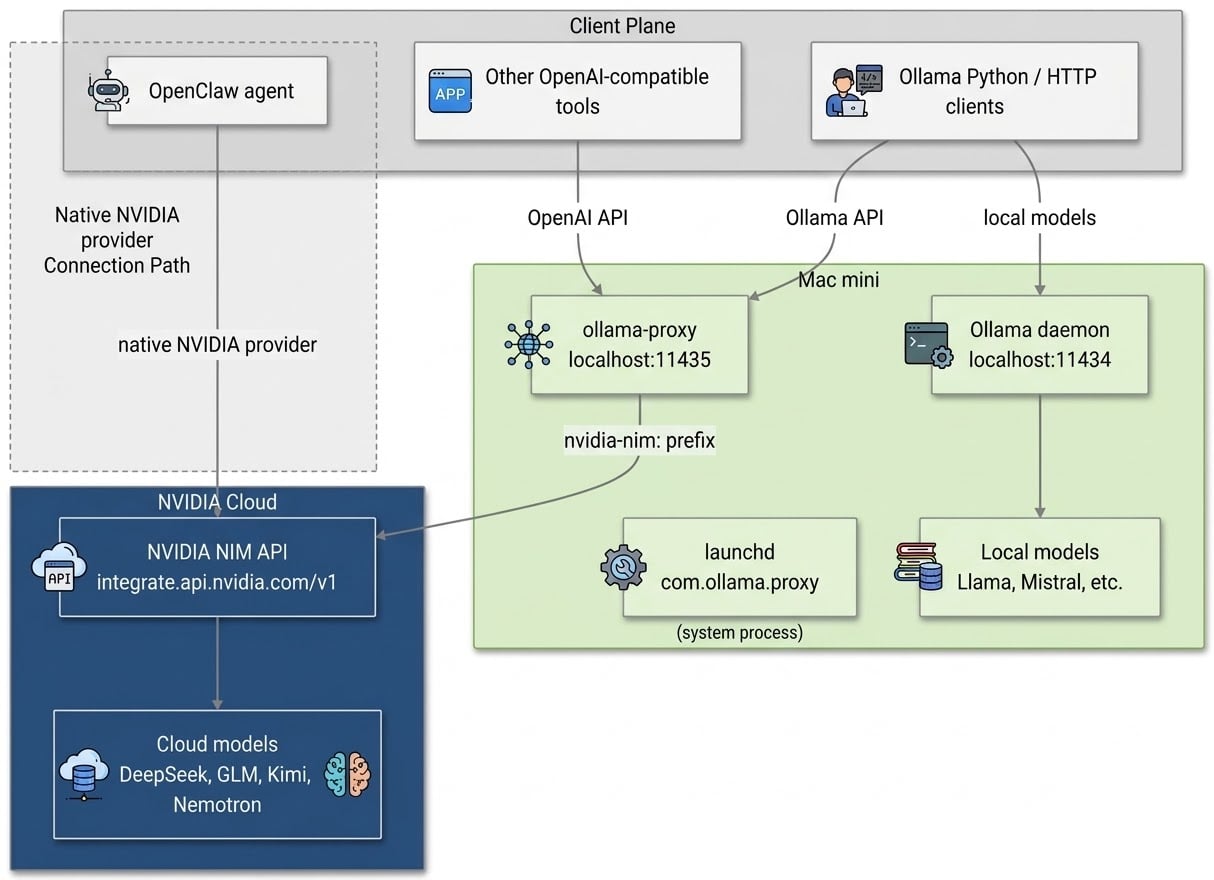
A Mac mini running Ollama and OpenClaw is a capable local AI stack. The missing piece has always been access to frontier-scale models without needing a GPU cluster. NVIDIA's free API tier on build.nvidia.com fills that gap. It offers open-weight models like DeepSeek, GLM, Kimi, and Nemotron through an OpenAI-compatible endpoint, no credit card required, up to 40 requests per minute.
This guide shows how to obtain an NVIDIA API key, run a local proxy that translates Ollama and OpenAI calls to NVIDIA NIM, and configure OpenClaw to use NVIDIA models directly.
Before You Start: Ollama and OpenClaw Setup
This guide assumes Ollama and OpenClaw are already installed, running, and configured on the Mac mini. If they are not, the foundation is covered in the previous guide: I Turned My Mac Mini Into a Local AI Workstation — Here's Exactly How.
That guide covers:
- Installing Ollama and pulling local models.
- Installing OpenClaw and setting up its agentic workflow.
- Running both as background services on the Mac mini.
What Is NVIDIA NIM?
NIM stands for NVIDIA Inference Microservices. It is NVIDIA's packaging of optimized model containers, exposed through a free API at https://integrate.api.nvidia.com/v1. The endpoint follows the OpenAI Chat Completions protocol, so any OpenAI-compatible client can use it after a base-URL change.
Step 1: Create an NVIDIA API Key
- Go to build.nvidia.com and create a free developer account.
- Navigate to the API Keys page.
- Generate a new key. It will start with
nvapi-.
On the Mac mini, export the key in the shell profile so it persists across sessions. For Zsh (default on modern macOS):
echo 'export NVIDIA_NIM_API_KEYS="nvapi-xxxxxxxxxxxxxxxxxxxx"' >> ~/.zshrc
source ~/.zshrc
For Bash:
echo 'export NVIDIA_NIM_API_KEYS="nvapi-xxxxxxxxxxxxxxxxxxxx"' >> ~/.bash_profile
source ~/.bash_profile
The proxy accepts multiple keys as a comma-separated list. For a single key, the format above is sufficient. To verify the variable is set:
echo $NVIDIA_NIM_API_KEYS
Security note: Never hardcode this key into files committed to Git. Export it in your shell profile instead.
Step 2: Run the Ollama Proxy
Ollama does not natively speak to NVIDIA's cloud endpoint. The jjb8966/ollama-proxy project bridges the gap. It is a Flask-based API gateway that routes requests from Ollama-compatible clients to multiple LLM providers, including NVIDIA NIM, using provider-specific prefixes.
The proxy exposes three API shapes simultaneously: Ollama (/api/chat, /api/tags), OpenAI (/v1/chat/completions, /v1/models), and Anthropic Messages (/v1/messages). Requests are routed to NVIDIA NIM when the model name starts with nvidia-nim:.
This section assumes Ollama is already installed and running as described in the previous Mac mini local AI workstation guide.
Clone the Repository
git clone https://github.com/jjb8966/ollama-proxy.git
cd ollama-proxy
Install Dependencies
The project requires Python 3.11 or later.
python3 -m venv .venv
source .venv/bin/activate
pip install -r requirements.txt
Configure Environment Variables
The proxy reads two environment variables. Both should be exported in your shell profile, same as the NVIDIA API key.
NVIDIA_NIM_API_KEYS— already set in Step 1.PROXY_API_TOKEN— a secret token you choose yourself. It is not provided by NVIDIA or the proxy. Clients must present this token in their requests to use the proxy. Think of it as a local password that protects your proxy from unauthorized access on your network. Choose any strong, unique string. You can generate one withopenssl rand -hex 32.
Add the proxy token to your shell profile. For Zsh:
echo 'export PROXY_API_TOKEN="your-proxy-token-here"' >> ~/.zshrc
source ~/.zshrc
For Bash:
echo 'export PROXY_API_TOKEN="your-proxy-token-here"' >> ~/.bash_profile
source ~/.bash_profile
The proxy also supports Google, OpenRouter, Akash, and Cohere, but only the NVIDIA variables are needed for this setup.
Run the Proxy
python ollama_proxy.py
The proxy listens on port 5002 by default. It can be changed with the PORT environment variable.
Keep the Proxy Running with launchd
A Mac mini that runs 24/7 should start the proxy automatically. Create a launchd plist:
cat > ~/Library/LaunchAgents/com.ollama.proxy.plist << 'EOF'
<?xml version="1.0" encoding="UTF-8"?>
<!DOCTYPE plist PUBLIC "-//Apple//DTD PLIST 1.0//EN" "http://www.apple.com/DTDs/PropertyList-1.0.dtd">
<plist version="1.0">
<dict>
    <key>Label</key>
    <string>com.ollama.proxy</string>
    <key>WorkingDirectory</key>
    <string>/Users/YOUR_USERNAME/ollama-proxy</string>
    <key>ProgramArguments</key>
    <array>
        <string>/Users/YOUR_USERNAME/ollama-proxy/.venv/bin/python</string>
        <string>ollama_proxy.py</string>
    </array>
    <key>EnvironmentVariables</key>
    <dict>
        <key>NVIDIA_NIM_API_KEYS</key>
        <string>nvapi-xxxxxxxxxxxxxxxxxxxx</string>
        <key>PROXY_API_TOKEN</key>
        <string>your-proxy-token-here</string>
        <key>PORT</key>
        <string>5002</string>
    </dict>
    <key>RunAtLoad</key>
    <true/>
    <key>KeepAlive</key>
    <true/>
    <key>StandardOutPath</key>
    <string>/Users/YOUR_USERNAME/Library/Logs/ollama-proxy.log</string>
    <key>StandardErrorPath</key>
    <string>/Users/YOUR_USERNAME/Library/Logs/ollama-proxy.error.log</string>
</dict>
</plist>
EOF

launchctl load ~/Library/LaunchAgents/com.ollama.proxy.plist
Replace YOUR_USERNAME with the macOS short username, found with whoami. Replace the API key and proxy token with the real values.
Note: Environment variables must be declared inside the plist. launchd does not read the shell profile, so variables set in
~/.zshrcare not available to background services. This is expected and necessary.
Use NVIDIA Models Through the Proxy
Once the proxy is running, clients call it on port 5002 using the nvidia-nim: prefix. The PROXY_API_TOKEN is already exported in the shell profile, so client code reads it from the environment instead of hardcoding it.
Using the Ollama Python library:
import os
import ollama

client = ollama.Client(
    host='http://localhost:5002',
    headers={'Authorization': f"Bearer {os.environ['PROXY_API_TOKEN']}"}
)

response = client.chat(
    model='nvidia-nim:deepseek-ai/deepseek-v4.1-flash',
    messages=[{'role': 'user', 'content': 'Explain MoE in one paragraph.'}]
)

print(response['message']['content'])
Expected output (example):
Mixture of Experts (MoE) is a technique where multiple specialized sub-models, called experts, are combined. A gating network routes each input token to only a small subset of experts, so the model can have a very large number of parameters while keeping computation low. This makes MoE models efficient and scalable for large language tasks.
Or through the OpenAI-compatible route:
import os
from openai import OpenAI

client = OpenAI(
    base_url="http://localhost:5002/v1",
    api_key=os.environ["PROXY_API_TOKEN"]
)

completion = client.chat.completions.create(
    model="nvidia-nim:z-ai/glm-5-3",
    messages=[{"role": "user", "content": "Write a haiku about GPUs."}]
)

print(completion.choices[0].message.content)
Expected output (example):
Silicon chips glow, Parallel cores hum softly, Numbers dance in light.
List all available models with:
curl -H "Authorization: Bearer $PROXY_API_TOKEN" \
  http://localhost:5002/api/tags
Useful model IDs include:
nvidia-nim:deepseek-ai/deepseek-v4.1-flashnvidia-nim:z-ai/glm-5-3nvidia-nim:z-ai/glm-5-3-flashnvidia-nim:moonshotai/kimi-k3nvidia-nim:nvidia/nemotron-3-ultra-550b-a55b
Model IDs follow NVIDIA's catalog naming. Confirm availability with
GET /v1/modelson the endpoint if a call returns404. The proxy's model list is defined in itsmodels.jsonfile.
Why Use a Proxy Alongside OpenClaw?
OpenClaw can talk to NVIDIA directly. So why add a proxy at all? Because the Mac mini is more than just OpenClaw.
Ollama is the home base for local models on the machine. Many tools already know how to talk to Ollama. They use its API. They do not know about NVIDIA. Changing every tool to support NVIDIA separately would be a lot of work.
The proxy solves that. It sits in front of NVIDIA and looks like Ollama to the rest of the system. Any tool that already uses Ollama can now use NVIDIA models by changing only the model name. No new SDK. No new provider code.
This keeps one simple setup:
- Local models for quick tasks, private work, and offline use.
- NVIDIA models for heavy reasoning, long context, and multimodal jobs.
- Same API for both.
The proxy also keeps the NVIDIA API key in one place. Tools do not each need their own key. That is easier to manage and safer.
OpenClaw still uses its native NVIDIA provider for the best agentic experience. The proxy is for everything else. If OpenClaw is the only tool running, the proxy is not needed. If other Ollama-based tools are running, the proxy makes them cloud-capable with almost no effort.
The previous Mac mini local AI workstation guide already sets Ollama as the central hub. The proxy extends that hub to cloud models without disrupting the rest of the setup.
Step 3: Integrate NVIDIA with OpenClaw
OpenClaw natively supports NVIDIA as a model provider. It auto-enables when the NVIDIA_API_KEY environment variable is set and defaults to the Nemotron 3 Ultra model.
This section assumes OpenClaw is already installed and configured as described in the previous Mac mini local AI workstation guide. The NVIDIA API key was already exported in Step 1, though OpenClaw expects it under a different variable name. Set it:
echo 'export NVIDIA_API_KEY="nvapi-xxxxxxxxxxxxxxxxxxxx"' >> ~/.zshrc
source ~/.zshrc
Then run the onboarding command:
openclaw onboard --auth-choice nvidia-api-key
Then set the default model:
openclaw models set nvidia/nvidia/nemotron-3-ultra-550b-a55b
If OpenClaw runs as a background service on the Mac mini, ensure the environment variable is available to the service. If set in ~/.zshrc, that only applies to interactive shells. For launchd services, add it to the plist's EnvironmentVariables section, similar to the proxy setup above.
Manual Config Snippet
To edit the OpenClaw config manually, use this YAML structure:
env:
  NVIDIA_API_KEY: "nvapi-xxxxxxxxxxxxxxxxxxxx"

models:
  providers:
    nvidia:
      baseUrl: "https://integrate.api.nvidia.com/v1"
      api: "openai-completions"

agents:
  defaults:
    model:
      primary: "nvidia/nvidia/nemotron-3-ultra-550b-a55b"
This config auto-loads NVIDIA's featured model catalog from assets.ngc.nvidia.com and caches it for 24 hours, so new models appear without an OpenClaw update.
Use NVIDIA Models in OpenClaw
Switch models interactively within OpenClaw:
/model nvidia/nvidia/nemotron-3-ultra-550b-a55b
Or set it as the default for agentic workflows:
openclaw agents set-default-model nvidia/nvidia/nemotron-3-ultra-550b-a55b
Nemotron 3 Ultra is a 550B total parameter model with 55B active and a 1M-token context window. It is built for long-context agentic work, which suits OpenClaw's multi-step reasoning and tool-calling tasks. Lighter alternatives in the built-in fallback catalog include:
nvidia/nvidia/nemotron-3-super-120bnvidia/nvidia/llama-3.1-nemotron-70b-instructmeta/llama-3.3-70b-instructnvidia/mistral-nemo-minitron-8b-8k-instruct
The Hybrid Stack
With these changes, the Mac mini runs a hybrid AI stack:
- NVIDIA API key is exported in the shell profile and available to background services.
- Ollama proxy runs on port
5002via launchd, providing access to NVIDIA NIM models for Ollama-based tools. - OpenClaw uses NVIDIA NIM directly for agentic coding sessions, with Nemotron 3 Ultra as the default model.
- Local Ollama models remain available on
localhost:11434for quick tasks, privacy-sensitive work, and offline use.
Local models handle speed and privacy. Cloud models handle scale and capability. These two paths are separate for now.
Rate Limits and Scaling
The free tier allows 40 requests per minute for most models. For prototyping and individual use, that is sufficient. If the limit is reached, options include:
- Wait and retry — the limit resets quickly.
- Deploy a NIM container locally on a GPU-equipped machine.
- Use a partner endpoint like AWS, Azure, or GCP, which host NIM containers.
Troubleshooting
"Connection refused" on the proxy: Ensure the proxy is running (launchctl list | grep ollama) and that NVIDIA_NIM_API_KEYS is set in the same shell session.
401 Unauthorized from the proxy: The Authorization: Bearer header is missing or the PROXY_API_TOKEN does not match. Include the header in every client request.
401 Unauthorized from NVIDIA: The NVIDIA API key may have expired or been revoked. Generate a new one at build.nvidia.com.
404 Model not found: Check the exact model ID against the proxy's models.json file or NVIDIA's catalog with GET /v1/models. The nvidia-nim: prefix is required for the proxy, and the nvidia/ prefix is required for OpenClaw model references.
Proxy exits immediately after boot: Check ~/Library/Logs/ollama-proxy.error.log. A wrong interpreter path or a missing WorkingDirectory is the usual cause.
Happy building.