

How to Build an Intelligent Router for NVIDIA and Ollama with LiteLLM, JEV, and Memori on a Mac Mini (Part 2)
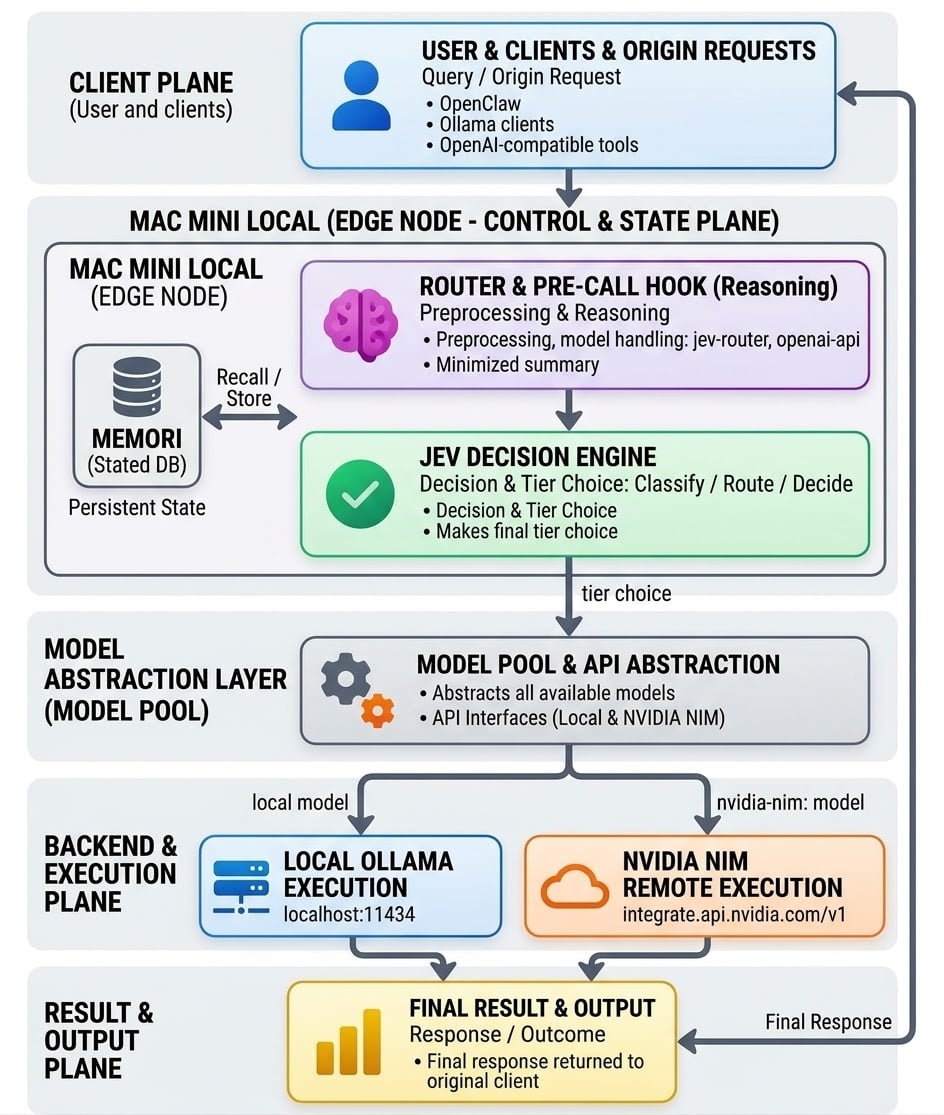
Part 1 covered the foundation: an NVIDIA API key, a local proxy for NVIDIA NIM, and OpenClaw configured with its native NVIDIA provider. That setup gave the Mac mini access to frontier NVIDIA models, but it kept two separate paths. Local Ollama models lived on localhost:11434. NVIDIA models went through the proxy on localhost:5002. Clients had to know which backend to call.
Part 2 removes that choice. A single intelligent router sits in front of both Ollama and NVIDIA NIM, decides which model serves each request, and adds persistent memory across sessions.
If the foundation from Part 1 is not in place, it is covered here: How to Set Up NVIDIA API Keys and Use Them with Ollama and OpenClaw on a Mac Mini (Part 1).
A Note on the Proxy from Part 1
Part 1 used ollama-proxy to bridge Ollama and NVIDIA NIM. That bridge is no longer needed. LiteLLM handles the same job natively, along with provider abstraction, fallbacks, retries, and routing logic. The proxy becomes redundant.
Retire it once clients point to LiteLLM:
launchctl unload ~/Library/LaunchAgents/com.ollama.proxy.plist
If any tools still call port 5002 with nvidia-nim: prefixed models, keep the proxy running until those clients are updated. Then remove it. Running both long-term adds two configs to maintain and two places for the API key.
Part 1 was a valid stepping stone. Part 2 is the upgrade.
The Stack at a Glance
Three components work together to route between local Ollama models and NVIDIA NIM:
| Component | Role |
|---|---|
| LiteLLM | OpenAI-compatible proxy that routes to 100+ providers, including Ollama and NVIDIA NIM. Replaces ollama-proxy from Part 1. |
| JEV | TypeSafe's System One model. A lightweight decision layer that picks which model serves a request. |
| Memori | SQL-native memory engine that gives the router persistent, queryable memory across sessions. |
Each one is replaceable. LiteLLM handles transport and provider abstraction. JEV handles routing intelligence. Memori handles context and recall.
Architecture
flowchart TB
    A[Clients] --> D[LiteLLM Router]
    D --> E[JEV decision]
    E --> F[Model pool]
    F --> H[Local Ollama]
    F --> I[NVIDIA NIM]
    D --> G[Memori]
    G --> D
The architecture consists of three layers:
Clients send requests to the LiteLLM router on port
4000. Clients include OpenClaw, Ollama clients, and any OpenAI-compatible tool.The Router is powered by LiteLLM. It uses a pre-call hook to build a request summary. The JEV decision layer picks the cheapest eligible tier. The model pool routes the request to either local Ollama or NVIDIA NIM.
Memory is provided by Memori. It connects to the pre-call hook. It recalls relevant memories before the call and stores the conversation after the call in a local SQLite database.
The router listens on http://localhost:4000. Local Ollama runs on localhost:11434. NVIDIA NIM is reached at https://integrate.api.nvidia.com/v1.
How a Request Flows
Client sends a request to the LiteLLM proxy with the model set to
jev-router.The pre-call hook intercepts the request and builds a minimized summary: recent message roles, truncated text, and signals for images or tool use.
The decision layer picks which tier should serve the request. It returns a tier choice with confidence and probabilities.
LiteLLM routes the request to the selected model in the pool. Local models go to Ollama. NVIDIA models go to NVIDIA NIM.
Memori injects relevant memories before the call and stores the conversation afterward, using a standard SQL database as the backing store.
Why This Architecture
Single Endpoint
Clients no longer need to know which backend to use. They call http://localhost:4000/v1/chat/completions with model: "jev-router". LiteLLM and the decision layer handle the rest, routing to either Ollama or NVIDIA NIM.
One Component Instead of Two
Part 1 required a separate proxy for NVIDIA and direct calls to Ollama for local models. LiteLLM absorbs both. The NVIDIA API key lives in one place. The Ollama endpoint lives in one place. Clients see one URL.
Intelligent Routing
Prefix-based routing is simple but rigid. nvidia-nim: always goes to NVIDIA. llama3.2 always goes to Ollama. A decision layer adds judgment. It looks at the request and picks the cheapest tier whose models can fully answer it.
Persistent Memory
Memori gives the router a memory that survives restarts. It works with any LLM framework and uses standard SQL databases instead of vector stores, which cuts memory costs by an estimated 80-90%.
Security Principles
Before installing anything, three decisions shape the security posture of the entire stack.
Pin LiteLLM to a safe version. LiteLLM had critical vulnerabilities in 2026, including a supply chain incident in March and several CVEs patched in v1.83.0 and later. The version floor for any proxy is >= 1.83.7. Version 1.83.7 fixes CVE-2026-42271, an arbitrary command execution vulnerability. Install with an exact pinned version and verify.
Generate a strong master key. The LiteLLM master key is the proxy's admin credential. Without it, anyone who can reach port 4000 can use every model in the pool. The key must start with sk- and be generated from at least 32 random bytes. Never use the default sk-1234 placeholder. Exposed gateways are a known problem.
Bind to localhost only. LiteLLM binds to 0.0.0.0 by default, which exposes the proxy to the local network. Add --host 127.0.0.1 to every run command and launchd plist.
Use virtual keys for clients. The master key is the admin credential. It must never be handed to a consumer. Clients should use scoped virtual keys, so access can be revoked without rotating the master key.
Disable environment credential login for the Admin UI. If the Admin UI is not needed, do not expose it. If it is needed, set disable_env_credential_login: true in config.yaml after creating a proper admin account.
These principles are applied step-by-step in the sections that follow.
Before You Start: Verify NVIDIA API Key
The NVIDIA_NIM_API_KEYS variable is set in Part 1. If it is already in your shell profile, skip to the next section. If not, or if you are starting fresh, verify it now.
Check the current shell:
echo "NVIDIA_NIM_API_KEYS=${NVIDIA_NIM_API_KEYS:-unset}"
Expected output if set:
NVIDIA_NIM_API_KEYS=nvapi-xxxxxxxxxxxxxxxxxxxx
If it prints unset, add it to your shell profile. For Zsh:
echo 'export NVIDIA_NIM_API_KEYS="nvapi-xxxxxxxxxxxxxxxxxxxx"' >> ~/.zshrc
source ~/.zshrc
For Bash:
echo 'export NVIDIA_NIM_API_KEYS="nvapi-xxxxxxxxxxxxxxxxxxxx"' >> ~/.bash_profile
source ~/.bash_profile
Replace the placeholder with the actual key from build.nvidia.com. The proxy and LiteLLM both read this variable.
Installing the Stack
Prerequisites
The Mac mini already has Python 3.11 or later from Part 1. Verify:
python3 --version
Expected output:
Python 3.11.x
Install LiteLLM
Install the pinned version with proxy support:
pip3 install 'litellm[proxy]==1.83.7'
Verify:
litellm --version
Expected output:
litellm, version 1.83.7
Install Memori
pip3 install memorisdk
Create the memory directory:
mkdir -p ~/ai-router/memory
Install the JEV Router
pip3 install jev-router
Alternatively, clone the repository:
git clone https://github.com/prismhq/jev-router.git ~/jev-router
cd ~/jev-router
pip3 install -e .
Verify the hook is available:
python3 -c "import jev_router; print(jev_router.__version__)"
Expected output:
0.1.x
Create the Router Directory
mkdir -p ~/ai-router/{config,memory,logs}
Base LiteLLM Configuration
Create ~/ai-router/config.yaml. This file defines the model pool and the master key.
model_list:
  - model_name: local-llama
    litellm_params:
      model: ollama_chat/llama3.2
      api_base: http://localhost:11434

  - model_name: local-mistral
    litellm_params:
      model: ollama_chat/mistral:7b
      api_base: http://localhost:11434

  - model_name: nvidia-deepseek
    litellm_params:
      model: nvidia_nim/deepseek-ai/deepseek-v4.1-flash
      api_key: os.environ/NVIDIA_NIM_API_KEYS

  - model_name: nvidia-glm
    litellm_params:
      model: nvidia_nim/z-ai/glm-5-3
      api_key: os.environ/NVIDIA_NIM_API_KEYS

litellm_settings:
  callbacks: jev_router.hook:router_hook
  drop_params: true

general_settings:
  master_key: os.environ/LITELLM_MASTER_KEY
  disable_env_credential_login: true
The callbacks line registers the JEV router's pre-call hook. The master_key line enforces authentication. The disable_env_credential_login line prevents the Admin UI from accepting the default environment-based login.
Export the master key:
echo 'export LITELLM_MASTER_KEY="sk-$(openssl rand -hex 32)"' >> ~/.zshrc
source ~/.zshrc
Create a Virtual Key for OpenClaw
Start the proxy manually for key generation:
cd ~/ai-router
litellm --config config.yaml --host 127.0.0.1 --port 4000
In another terminal, generate a virtual key:
curl -X POST http://localhost:4000/key/generate \
  -H "Authorization: Bearer $LITELLM_MASTER_KEY" \
  -H "Content-Type: application/json" \
  -d '{
    "models": ["local-llama", "local-mistral", "nvidia-deepseek", "nvidia-glm"],
    "metadata": {"client": "openclaw"}
  }'
The response contains the virtual key. Store it with the client. Generate separate keys for other tools.
Stop the proxy with Ctrl+C once the key is saved.
Router Configuration
The JEV router ships with two decision engines: JevDecider and RulesDecider. The choice is automatic. If TYPESAFE_API_KEY is set, JevDecider runs and JEV makes the routing call. If the key is not set, RulesDecider runs instead. It picks the cheapest eligible model from the candidate pool, filtered by capability flags like vision, output length, and tool support.
For a local-first setup, the default is RulesDecider. No key, no third-party call, no data leaving the Mac mini.
Ensuring Privacy: Unsetting TYPESAFE_API_KEY
RulesDecider runs only when TYPESAFE_API_KEY is not present. If the variable is set anywhere — shell profile, .env file, or launchd plist — the router will use JevDecider instead and send minimized summaries to TypeSafe.
Verify the variable is not set:
echo "TYPESAFE_API_KEY=${TYPESAFE_API_KEY:-unset}"
Expected output:
TYPESAFE_API_KEY=unset
If it prints a value, remove it from your shell profile:
sed -i '' '/TYPESAFE_API_KEY/d' ~/.zshrc
source ~/.zshrc
Check any .env files:
grep -R "TYPESAFE_API_KEY" ~/jev-router 2>/dev/null
Check the launchd plist:
grep -A 10 "EnvironmentVariables" ~/Library/LaunchAgents/com.litellm.router.plist
If the variable is listed, remove it. Reload the service if it was running.
Configure the Routing Policy
Create ~/ai-router/router.yaml. This file defines the candidates, their capabilities, prices, and the fallback.
candidates:
  - name: local-llama
    description: Fast local model for simple tasks.
    price: 0.0
    capabilities:
      vision: false
      tools: true
      max_output: 4096

  - name: local-mistral
    description: Balanced local model for everyday coding.
    price: 0.0
    capabilities:
      vision: false
      tools: true
      max_output: 8192

  - name: nvidia-deepseek
    description: NVIDIA NIM model for complex reasoning and long context.
    price: 0.0001
    capabilities:
      vision: true
      tools: true
      max_output: 131072

  - name: nvidia-glm
    description: NVIDIA NIM model for multimodal and agentic tasks.
    price: 0.0001
    capabilities:
      vision: true
      tools: true
      max_output: 131072

fallback: local-mistral
Prices are relative. RulesDecider picks the cheapest model that meets the request's capability needs. Local models have price 0.0, so they win for any request they can handle. NVIDIA models only get selected when the request needs vision, tools, or a context window larger than the local models support.
Switching to Another Routing Path
The endpoint stays http://localhost:4000/v1/chat/completions. The model name stays jev-router. Only the decision layer changes.
Path 2: Local Classifier replaces RulesDecider with a small Ollama model that reads the prompt and returns a tier.
model_list:
  - model_name: jev-router
    litellm_params:
      model: auto_router/complexity_router
      complexity_router_config:
        classifier_type: llm
        classifier_llm_config:
          model: ollama_chat/qwen2.5:3b
          api_base: http://localhost:11434
          timeout_ms: 2000
        classifier_fallback: heuristic
        tiers:
          SIMPLE: local-llama
          MEDIUM: local-mistral
          COMPLEX: nvidia-deepseek
          REASONING: nvidia-glm
        complexity_router_default_model: local-mistral
Pull the classifier model first:
ollama pull qwen2.5:3b
Path 3: Semantic Routing replaces the classifier with local embeddings.
model_list:
  - model_name: jev-router
    litellm_params:
      model: auto_router/semantic_router
      semantic_router_config:
        embedding_model: ollama/nomic-embed-text
        routes:
          - name: simple
            utterances:
              - "what is"
              - "define"
              - "hello"
            model: local-llama
          - name: complex
            utterances:
              - "step by step"
              - "analyze this architecture"
              - "refactor the auth module"
            model: nvidia-deepseek
        default_model: local-mistral
Pull the embedding model first:
ollama pull nomic-embed-text
Memori Configuration
Memori must be configured in BYODB (Bring Your Own Database) mode to keep data local. This is done by passing a database connection directly to the Memori constructor. When you provide a valid connection, Memori switches to BYODB mode and sets config.cloud=False internally. Without this connection, it defaults to Memori Cloud.
Verify SQLite Is Available
macOS ships with sqlite3 pre-installed. Verify it is available:
sqlite3 --version
Expected output (example):
3.43.2 2023-10-10 13:00:00
For the latest version with extension support, install it via Homebrew:
brew install sqlite
Homebrew's sqlite is keg-only, so it does not overwrite the system binary. Add it to PATH if you want sqlite3 to resolve to the newer version:
echo 'export PATH="/opt/homebrew/opt/sqlite/bin:$PATH"' >> ~/.zshrc
source ~/.zshrc
The system version at /usr/bin/sqlite3 remains available if needed. For the VACUUM; command used below, either version works.
Create the Local SQLite Database
The database file must exist before Memori can build its schema inside it. Create the directory and initialize an empty SQLite file:
mkdir -p ~/ai-router/memory
sqlite3 ~/ai-router/memory/memori.db "VACUUM;"
Expected output: none. Verify the file was created:
ls -lh ~/ai-router/memory/
Expected output:
-rw-r--r-- 1 YOUR_USERNAME staff 4.0K Jan 1 12:00 memori.db
An empty SQLite file is 0 bytes until the first write. The VACUUM; statement forces SQLite to write the file header, so the file appears immediately. If you skip it, the file will be created on the first Memori write.
You can inspect the database at any time:
sqlite3 ~/ai-router/memory/memori.db ".tables"
Expected output before Memori builds its schema: none. After the schema is built:
memori_conversations memori_memories
Use the Database in the Script
Create ~/ai-router/agent.py. The script points Memori at the SQLite file created above, builds the schema, and enables memory:
import os
from memori import Memori
from litellm import completion
from sqlalchemy import create_engine
from sqlalchemy.orm import sessionmaker

# 1. Absolute path to the local SQLite database
db_path = os.path.expanduser("~/ai-router/memory/memori.db")

# 2. SQLAlchemy engine and session bound to that file
engine = create_engine(f"sqlite:///{db_path}")
SessionLocal = sessionmaker(bind=engine)

# 3. Initialize Memori in BYODB mode.
# Passing conn=SessionLocal sets config.cloud=False and config.byodb=True
memori = Memori(
    conn=SessionLocal,
    conscious_ingest=True,
)

# 4. Build the schema inside the local database (idempotent)
memori.config.storage.build()

# 5. Enable memory interception for LiteLLM calls
memori.enable()

# 6. Every completion call now reads and writes to the local database
response = completion(
    model="jev-router",
    messages=[{"role": "user", "content": "What did we discuss last time?"}],
    api_base="http://localhost:4000",
    api_key=os.environ["LITELLM_MASTER_KEY"],
)

print(response.choices[0].message.content)
The key line is conn=SessionLocal. That is what switches Memori out of cloud mode. Without it, the SDK defaults to Memori Cloud and sends data to api.memorilabs.ai.
Verify the Database Is Being Used
After running the script once, check that Memori wrote to the local file:
sqlite3 ~/ai-router/memory/memori.db ".tables"
Expected output:
memori_conversations memori_memories
Count the rows:
sqlite3 ~/ai-router/memory/memori.db \
  "SELECT COUNT(*) FROM memori_conversations;"
Expected output after one run:
1
If the count is zero, Memori is not writing locally. Confirm the conn parameter is set and the schema build ran without error.
Verifying Memori Stays Local
Configuration alone is not a guarantee. The SDK contains code for Memori Cloud endpoints, and a documented "cloud tether" issue may still POST to the cloud even in BYODB mode.
Quick audit with lsof:
sudo lsof -i -n | grep ESTABLISHED
Look for entries where the COMMAND is python. If you see connections to IPs that are not your local Ollama (127.0.0.1:11434) or NVIDIA NIM (integrate.api.nvidia.com), that warrants investigation.
Deeper inspection with tcpdump:
sudo tcpdump -n -i en0 'udp port 53'
While this runs, execute a test request through the Memori-enabled agent. If you see DNS lookups for domains like api.memorilabs.ai, the tether is active.
Block at the network level:
echo "127.0.0.1 api.memorilabs.ai" | sudo tee -a /etc/hosts
If the tether is active, the request will fail locally instead of leaving the machine.
Running as a launchd Service
The Mac mini runs 24/7. LiteLLM should start on boot and restart if it crashes.
Create a Wrapper Script
Instead of putting the entire command and all environment variables directly into the plist, create a small shell script that runs the router. This keeps the plist short and avoids formatting issues.
Create ~/ai-router/start_router.sh:
#!/bin/bash
export NVIDIA_NIM_API_KEYS="nvapi-xxxxxxxxxxxxxxxxxxxx"
export LITELLM_MASTER_KEY="sk-xxxxxxxxxxxxxxxxxxxxxxxxxxxxxxxx"
export PATH="/usr/local/bin:/usr/bin:/bin:/usr/sbin:/sbin"

cd /Users/YOUR_USERNAME/ai-router
exec /usr/local/bin/litellm --config config.yaml --host 127.0.0.1 --port 4000
Make it executable:
chmod +x ~/ai-router/start_router.sh
Create the launchd Plist
Create ~/Library/LaunchAgents/com.litellm.router.plist:
cat > ~/Library/LaunchAgents/com.litellm.router.plist << 'EOF'
<?xml version="1.0" encoding="UTF-8"?>
<!DOCTYPE plist PUBLIC "-//Apple//DTD PLIST 1.0//EN" "http://www.apple.com/DTDs/PropertyList-1.0.dtd">
<plist version="1.0">
<dict>
    <key>Label</key>
    <string>com.litellm.router</string>
    <key>ProgramArguments</key>
    <array>
        <string>/Users/YOUR_USERNAME/ai-router/start_router.sh</string>
    </array>
    <key>RunAtLoad</key>
    <true/>
    <key>KeepAlive</key>
    <true/>
    <key>StandardOutPath</key>
    <string>/Users/YOUR_USERNAME/ai-router/logs/litellm.log</string>
    <key>StandardErrorPath</key>
    <string>/Users/YOUR_USERNAME/ai-router/logs/litellm.error.log</string>
</dict>
</plist>
EOF
Replace YOUR_USERNAME with the macOS short username.
Restrict access to the plist and the wrapper script:
chmod 600 ~/Library/LaunchAgents/com.litellm.router.plist
chmod 700 ~/ai-router/start_router.sh
Load the service:
launchctl load ~/Library/LaunchAgents/com.litellm.router.plist
Verify:
launchctl list | grep litellm
Expected output:
12345 0 com.litellm.router
The first number is the PID. The second is the last exit status. 0 means success.
Testing the Full Stack
Send a request that should route locally:
curl -X POST http://localhost:4000/v1/chat/completions \
  -H "Authorization: Bearer sk-your-virtual-key" \
  -H "Content-Type: application/json" \
  -d '{"model": "jev-router", "messages": [{"role": "user", "content": "Say hello"}]}'
Expected output (truncated):
{
  "model": "local-llama",
  "choices": [{"message": {"content": "Hello! How can I help?"}}]
}
Confirm the routing decision in the logs:
tail -n 5 ~/ai-router/logs/litellm.log
Expected output (example):
INFO: request model=jev-router, resolved=local-llama, provider=ollama
Send a request that requires a large context window:
curl -X POST http://localhost:4000/v1/chat/completions \
  -H "Authorization: Bearer sk-your-virtual-key" \
  -H "Content-Type: application/json" \
  -d '{"model": "jev-router", "messages": [{"role": "user", "content": "Analyze this 50-page document..."}]}'
Expected output (truncated):
{
  "model": "nvidia-deepseek",
  "choices": [{"message": {"content": "..."}}]
}
Confirm the routing decision in the logs:
tail -n 5 ~/ai-router/logs/litellm.log
Expected output (example):
INFO: request model=jev-router, resolved=nvidia-deepseek, provider=nvidia_nim
The response's model field should report nvidia-deepseek or nvidia-glm, depending on the capability filter.
Confirming the Routing Rule Is Working
Send a request that needs vision (an image input). With vision: true only on the NVIDIA models in router.yaml, the router must skip the local models:
curl -X POST http://localhost:4000/v1/chat/completions \
  -H "Authorization: Bearer sk-your-virtual-key" \
  -H "Content-Type: application/json" \
  -d '{
    "model": "jev-router",
    "messages": [{
      "role": "user",
      "content": [
        {"type": "text", "text": "What is in this image?"},
        {"type": "image_url", "image_url": {"url": "data:image/png;base64,..."}}
      ]
    }]
  }'
The response's model field must be nvidia-deepseek or nvidia-glm. If a local model appears, the vision capability flag in router.yaml is set incorrectly, or the capability check is not detecting the image input.
Confirming Memori Is Recording
After a few requests, check the local database:
sqlite3 ~/ai-router/memory/memori.db \
  "SELECT COUNT(*) FROM memori_conversations;"
The count should increase with each conversation. If it stays at zero, Memori is not intercepting the calls. Confirm memori.enable() ran before the first completion() call.
Troubleshooting
litellm: command not found — The binary is not in PATH. Use the full path in the plist, or install with pipx.
Service exits immediately after boot — Check ~/ai-router/logs/litellm.error.log. A missing PATH or an unreachable Ollama daemon is the usual cause.
ModuleNotFoundError: No module named 'jev_router' — Install both with the same pip3.
401 Unauthorized — Use a virtual key, not the master key, for client requests.
Requests always route to NVIDIA — Local models may not be listed in router.yaml or may be priced higher than NVIDIA models.
Memori database not created — The SQLite path must be absolute. Replace ~ with the full home directory path.
Memori writes but no rows appear — Confirm memori.config.storage.build() ran before the first completion call. Check sqlite3 ~/ai-router/memory/memori.db ".tables" for the expected schema.
sqlite3: command not found — macOS ships with sqlite3 at /usr/bin/sqlite3. If the command is missing, the system installation has been modified. Install via Homebrew with brew install sqlite and add /opt/homebrew/opt/sqlite/bin to PATH.
Suspicious outbound connections from Python — Use lsof -i -n | grep ESTABLISHED to identify the remote address. If Memori is the source, confirm BYODB mode is active and the /etc/hosts block is in place.
Log file is empty — Confirm the plist writes to the expected path. The StandardOutPath and StandardErrorPath keys must be absolute paths the launchd user can write to.
Happy building.