
Building an AI Trading Team on Your Mac: A Deep Dive into TradingAgents with Gemini 3
Introduction
TradingAgents is an open-source multi-agent LLM framework that simulates a real-world trading firm. It deploys specialized agents — fundamental analysts, sentiment experts, technical analysts, researchers, traders, and risk managers — that collaboratively evaluate market conditions and debate optimal strategies before producing a final trading decision.
Built on LangGraph for stateful orchestration, the framework supports multiple LLM providers including Google Gemini, OpenAI, Anthropic, and more. This guide walks you through a complete production-grade setup on a Mac Mini: Gemini 3 as the inference backend, LangGraph Studio for visual debugging, uv for Python environment management, yfinance for market data, and a launchd scheduled job that runs the analysis twice daily and pushes the report to Telegram.
What you'll build:
- A Python 3.11 virtual environment managed by
uv - TradingAgents with Gemini 3 models
- A centralized
.envfile — one place for every secret and setting - LangGraph Studio for step-by-step visual debugging
- A
launchdjob running at 6:00 AM and 3:00 PM HKT - Automatic Telegram notifications after each run
Project Layout
Everything lives in a single repository with a predictable structure. All configuration is centralized in .env; the launchd job calls the wrapper script, which sources .env at runtime.
~/TradingAgents/
├── .env                     ← ALL configuration lives here
├── .venv/                   ← Python 3.11 virtual environment (uv-managed)
├── trade.py                 ← analysis runner
├── scripts/
│   ├── run_analysis.sh      ← wrapper: sources .env, runs trade.py, sends Telegram
│   └── send_telegram.py     ← Telegram notification script
└── trading_data/
    └── reports/             ← output: markdown report trees per ticker
Why this layout matters: You only edit .env when you rotate an API key or change a model, and you only touch the plist when you change the schedule. Everything else is automated. The wrapper script exists specifically because launchd does not expand $HOME in plists and freezes its EnvironmentVariables at load time — the wrapper resolves $HOME at runtime and re-sources .env on every run.
Architecture: How the Virtual Trading Firm Works
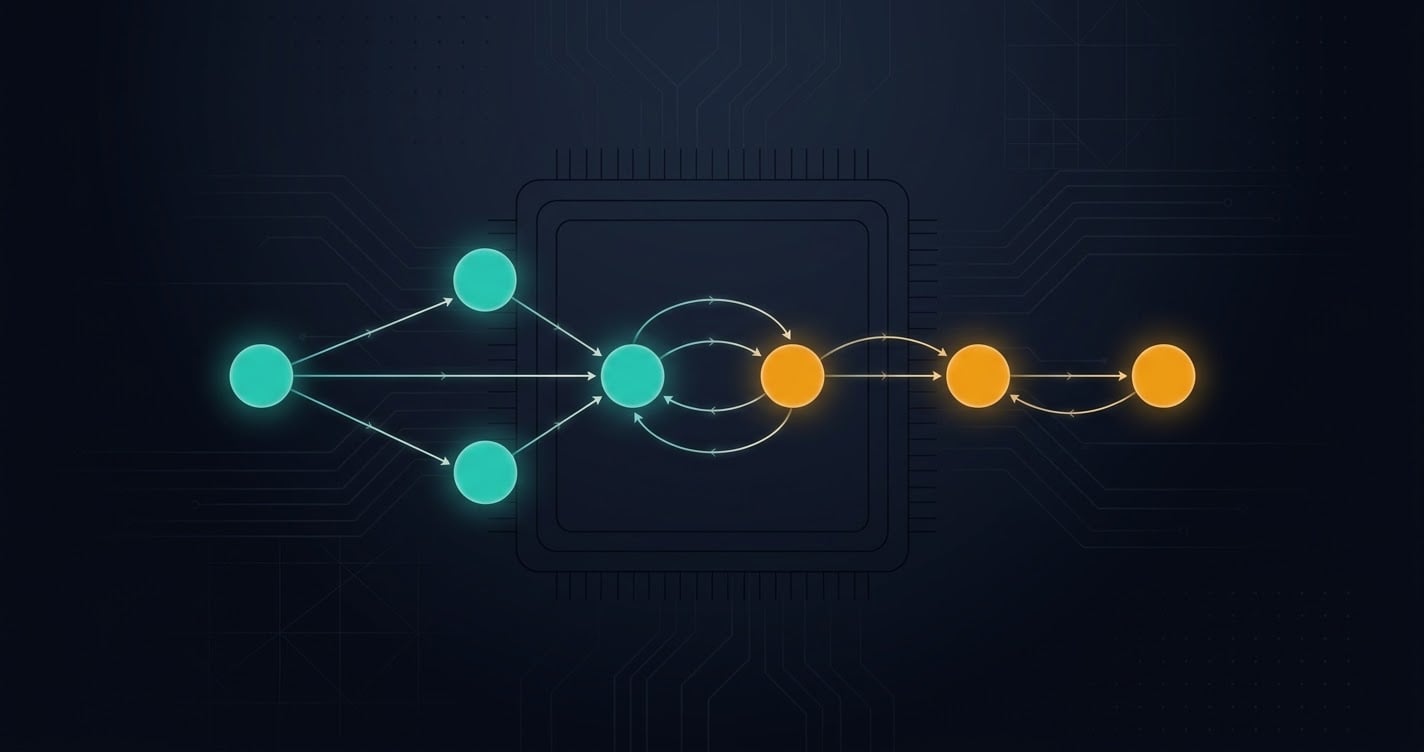
TradingAgents mirrors a real trading firm's organizational structure, implemented as a LangGraph StateGraph where each agent is a node and edges define information flow.
Four-layer workflow:
| Layer | Agents | Role | Think Level |
|---|---|---|---|
| Analyst Team | Fundamentals, Sentiment, News, Technical | Gather data, produce initial reports | Quick Think |
| Researcher Debate | Bull Researcher ↔ Bear Researcher | Structured debate on analyst findings | Deep Think |
| Trading | Trader Agent | Composes reports into a trading plan | Deep Think |
| Risk Management | Aggressive ↔ Conservative ↔ Neutral Analyst, Portfolio Manager | Debates risk, approves/rejects the trade | Deep Think |
Each analyst runs a conditional tool-call loop: the agent calls a data tool (e.g., get_stock_data), receives the result, loops back, and advances when it has enough data. The debate phase uses bidirectional loops — Bull and Bear researchers alternate until the debate count reaches 2 × max_debate_rounds. The risk phase rotates three analysts until 3 × max_risk_discuss_rounds.
What runs where:
| Layer | Location | Description |
|---|---|---|
| LangGraph orchestration | Local (Mac Mini) | State graph compilation, node routing, checkpoint persistence |
| TradingAgents framework | Local | Agent definitions, tool nodes, memory logs |
| yfinance data fetching | Local (network) | HTTP requests to Yahoo Finance APIs |
| Gemini inference | Remote (Google Cloud) | The actual LLM reasoning — each agent node sends a prompt to Gemini |
| Telegram delivery | Remote (Telegram API) | HTTP POST to api.telegram.org — no local server needed |
When you call ta.propagate("NVDA", date), LangGraph compiles the graph locally, then streams execution node by node. Each agent node makes a remote API call to Gemini for reasoning, merges the response back into the shared AgentState, and LangGraph routes to the next node based on conditional logic. The final decision is written to disk as markdown and pushed to Telegram by a small wrapper script.
Why Gemini 3
Native Google client support. TradingAgents has a dedicated GoogleClient that handles Gemini's unique content format — Gemini 3 models return content as a list of typed blocks rather than plain strings, and the client normalizes this so downstream agents don't break.
Thinking level control. Gemini 3 models support thinking_level parameters (low, high, and minimal for Flash models), letting you control the reasoning budget per role.
Single-provider simplicity. Using Gemini for both Quick Think and Deep Think roles avoids cross-provider routing bugs that can cause API key mismatches or silent fallbacks.
Model selection for this project:
- Deep Think —
gemini-3.8-flash: Our most intelligent Flash model, engineered for long-horizon software engineering, autonomous agents, and complex enterprise workflows. Used for the Researcher debate, Trader, and Risk Management agents. - Quick Think —
gemini-3.1-flash-lite: Frontier-class performance rivaling larger models at a fraction of the cost. Used for the four Analyst agents, which are high-throughput data gathering tasks.
Step 1: Install Homebrew
If you don't have Homebrew:
/bin/bash -c "$(curl -fsSL https://raw.githubusercontent.com/Homebrew/install/HEAD/install.sh)"
Follow the printed instructions to add Homebrew to your PATH, then verify:
brew --version
Expected output:
Homebrew 4.x.x
Step 2: Install uv
brew install uv
Verify:
uv --version
Expected output:
uv 0.x.x
Step 3: Verify System Timezone is HKT
launchd's StartCalendarInterval uses the system timezone. Since we're scheduling for 6:00 AM and 3:00 PM HKT, the system timezone must be Asia/Hong_Kong.
sudo systemsetup -gettimezone
Expected output:
Time Zone: Asia/Hong_Kong
If it's not HKT, set it:
sudo systemsetup -settimezone Asia/Hong_Kong
Step 4: Clone TradingAgents and Create the Environment
git clone https://github.com/TauricResearch/TradingAgents.git
cd TradingAgents
uv venv --python 3.11
source .venv/bin/activate
Expected output:
Using CPython 3.11.x
Creating virtual environment at: .venv
Activate with: source .venv/bin/activate
Python 3.11 is recommended for best performance and compatibility — TradingAgents supports 3.10–3.12, with 3.11 being the sweet spot. uv downloads Python 3.11 automatically if it's not already on your system.
Step 5: Install TradingAgents and LangGraph CLI
For the official LangGraph installation reference, see the LangGraph install documentation. For CLI and Studio setup, see the LangGraph CLI documentation and the Studio quickstart.
uv pip install -e .
uv pip install -U "langgraph-cli[inmem]"
Expected result: Both installations complete without errors. The -e flag installs TradingAgents in editable mode.
Verify:
python -c "from tradingagents.graph.trading_graph import TradingAgentsGraph; print('TradingAgents OK')"
python -c "from langgraph.graph import StateGraph; print('LangGraph OK')"
Expected output:
TradingAgents OK
LangGraph OK
Step 6: Create the Centralized .env File
This is your single source of truth. Every secret and configuration value lives here.
vim .env
Paste:
# ============================================================
# TradingAgents Centralized Configuration
# ============================================================

# --- LLM Provider ---
TRADINGAGENTS_LLM_PROVIDER=google
GOOGLE_API_KEY=your-google-api-key-here

# --- Models ---
TRADINGAGENTS_DEEP_THINK_LLM=gemini-3.8-flash
TRADINGAGENTS_QUICK_THINK_LLM=gemini-3.1-flash-lite

# --- Trading ---
TRADINGAGENTS_DATA_DIR=./trading_data
TICKER=NVDA
MAX_DEBATE_ROUNDS=2

# --- Telegram Notification ---
TELEGRAM_BOT_TOKEN=123456789:ABC-your-bot-token
TELEGRAM_CHAT_ID=987654321

# --- Logging ---
LOG_LEVEL=INFO
Save and exit: press Esc, type :wq, press Enter.
Replacing values: Edit with vim .env and replace the placeholders. Get your Google API key from Google AI Studio. Get your Telegram bot token from @BotFather and your chat ID from @userinfobot on Telegram.
TradingAgents automatically loads .env files on import — any TRADINGAGENTS_* variable overrides the matching key in DEFAULT_CONFIG.
Step 7: Create the Telegram Notification Script
Telegram is not integrated natively in the main TradingAgents repository. You do not need MLX or any local inference server — Telegram is just an HTTP API call.
mkdir -p scripts
vim scripts/send_telegram.py
Paste:
import os
import requests
from pathlib import Path
from datetime import date

BOT_TOKEN = os.environ["TELEGRAM_BOT_TOKEN"]
CHAT_ID = os.environ["TELEGRAM_CHAT_ID"]
TICKER = os.environ.get("TICKER", "NVDA")

def send_telegram(text: str) -> None:
    url = f"https://api.telegram.org/bot{BOT_TOKEN}/sendMessage"
    resp = requests.post(url, data={
        "chat_id": CHAT_ID,
        "text": text[:4000],
        "parse_mode": "Markdown",
        "disable_web_page_preview": True,
    }, timeout=30)
    resp.raise_for_status()
    print("Telegram report sent.")

report_dir = Path.home() / "TradingAgents" / "trading_data" / "reports" / TICKER / date.today().isoformat()
decision_file = report_dir / "5_portfolio" / "decision.md"

if decision_file.exists():
    decision = decision_file.read_text()
    send_telegram(f"*{TICKER} — {date.today().isoformat()}*\n\n{decision}")
else:
    send_telegram(f"{TICKER} analysis for {date.today().isoformat()} completed, but no decision file was found.")
    print("Decision file missing; sent fallback notice.")
Save and exit.
Step 8: Create the Wrapper Script
vim scripts/run_analysis.sh
Paste:
#!/bin/bash
set -euo pipefail

REPO="$HOME/TradingAgents"
VENV="$REPO/.venv/bin/python"
ENV_FILE="$REPO/.env"

# Load centralized .env into this process's environment
set -a
source "$ENV_FILE"
set +a

cd "$REPO"

# Step 1: Run the analysis
"$VENV" "$REPO/trade.py"

# Step 2: Send the Telegram report
"$VENV" "$REPO/scripts/send_telegram.py"
Make it executable:
chmod +x scripts/run_analysis.sh
Why the wrapper exists: launchd does not expand $HOME in plist strings, and its EnvironmentVariables dict is static at load time. The wrapper resolves $HOME at runtime and sources .env fresh on every run. This means you can rotate your Google API key or Telegram token by editing .env alone — no plist reload required.
Step 9: Create the trade.py Script
vim trade.py
Paste:
import os
from datetime import date
from dotenv import load_dotenv
from tradingagents.graph.trading_graph import TradingAgentsGraph
from tradingagents.default_config import DEFAULT_CONFIG

load_dotenv()

config = DEFAULT_CONFIG.copy()
config["llm_provider"] = os.getenv("TRADINGAGENTS_LLM_PROVIDER", "google")
config["quick_think_llm"] = os.getenv("TRADINGAGENTS_QUICK_THINK_LLM")
config["deep_think_llm"] = os.getenv("TRADINGAGENTS_DEEP_THINK_LLM")
config["data_vendors"] = {
    "core_stock_apis": "yfinance",
    "technical_indicators": "yfinance",
    "fundamental_data": "yfinance",
    "news_data": "yfinance"
}
config["max_debate_rounds"] = int(os.getenv("MAX_DEBATE_ROUNDS", "2"))

ta = TradingAgentsGraph(debug=True, config=config)

ticker = os.getenv("TICKER", "NVDA")
today = date.today().isoformat()
print(f"Starting Analysis for {ticker} ({today})...")

state, decision = ta.propagate(ticker, today)
ta.save_reports(state, ticker)

print("\n" + "="*60)
print("FINAL DECISION:")
print("="*60)
print(decision)
Save and exit.
Run it manually once to verify:
python trade.py
Expected result: The graph executes node by node. Reports are written to ./trading_data/reports/NVDA/<DATE>/, and the final decision prints to the terminal.
Step 10: Create the launchd Job
vim ~/Library/LaunchAgents/com.tradingagents.schedule.plist
Paste:
<?xml version="1.0" encoding="UTF-8"?>
<!DOCTYPE plist PUBLIC "-//Apple//DTD PLIST 1.0//EN"
  "http://www.apple.com/DTDs/PropertyList-1.0.dtd">
<plist version="1.0">
<dict>
    <key>Label</key>
    <string>com.tradingagents.schedule</string>

    <key>ProgramArguments</key>
    <array>
        <string>/bin/bash</string>
        <string>-c</string>
        <string>"$HOME/TradingAgents/scripts/run_analysis.sh"</string>
    </array>

    <key>StartCalendarInterval</key>
    <array>
        <dict>
            <key>Hour</key>
            <integer>6</integer>
            <key>Minute</key>
            <integer>0</integer>
        </dict>
        <dict>
            <key>Hour</key>
            <integer>15</integer>
            <key>Minute</key>
            <integer>0</integer>
        </dict>
    </array>

    <key>StandardOutPath</key>
    <string>/tmp/tradingagents.out.log</string>
    <key>StandardErrorPath</key>
    <string>/tmp/tradingagents.err.log</string>

    <key>RunAtLoad</key>
    <false/>
</dict>
</plist>
Save and exit.
How the schedule works: StartCalendarInterval uses the system timezone — which you verified is HKT in Step 3. Hour 6 means 6:00 AM HKT, Hour 15 means 3:00 PM HKT. If the Mac is asleep at those times, launchd coalesces the missed intervals and fires once on wake.
Why RunAtLoad is false: Setting it to true would trigger a run immediately when the plist is loaded — including after every reboot. With false, the job only runs at the scheduled times.
Step 11: Load and Test the Job
launchctl load ~/Library/LaunchAgents/com.tradingagents.schedule.plist
Verify registration:
launchctl list | grep tradingagents
Expected output: A line showing com.tradingagents.schedule with a PID (or -) and an exit code.
Force a test run immediately without waiting for 6am:
launchctl start com.tradingagents.schedule
Watch the logs:
tail -f /tmp/tradingagents.out.log /tmp/tradingagents.err.log
Expected result: The analysis runs, reports are written to disk, and a Telegram message arrives in your chat.
To reload after editing the plist:
launchctl unload ~/Library/LaunchAgents/com.tradingagents.schedule.plist
launchctl load ~/Library/LaunchAgents/com.tradingagents.schedule.plist
Checkpoint/Resume
TradingAgents supports checkpointing to save state after each node to a per-ticker SQLite database. If a run crashes, it resumes from the last successful node instead of restarting.
How it works: Each ticker's run is stored at ~/.tradingagents/cache/checkpoints/<TICKER>.db. The thread_id is deterministic, based on the ticker, date, and a signature hash of graph-shape-affecting choices. If you change the configuration in a way that alters the graph's structure, a new checkpoint thread ID is generated, preventing resumption from an incompatible prior state.
Enable it in trade.py:
config["checkpoint_enabled"] = True
On resume, the framework prints Resuming from step N for <TICKER> on <date> instead of restarting from scratch. After successful completion, the checkpoint is automatically cleaned up.
CLI alternative: The TradingAgents CLI accepts --checkpoint as a command-line argument.
LangGraph Studio: Visual Debugging
LangGraph Studio gives you a live, interactive view of the graph as it executes. You can set breakpoints, inspect state at any node, view exact prompts sent to Gemini, and debug failures without re-running the entire pipeline. For the official reference, see the LangGraph Studio documentation.
Setup
Create langgraph.json at the repo root:
vim langgraph.json
Paste:
{
  "dependencies": ["."],
  "graphs": {
    "trading_agents": {
      "path": "tradingagents/graph/trading_graph.py:TradingAgentsGraph",
      "config": {
        "debug": true
      }
    }
  },
  "env": ".env"
}
Save and exit.
Start the dev server:
langgraph dev
Expected output:
Server started at http://localhost:2024
Open Studio in your browser. Safari and Brave block plain HTTP on localhost — if you're using either, add the --tunnel flag to get an HTTPS-accessible endpoint.
What Studio Gives You
| Feature | What It Does |
|---|---|
| Interactive graph visualization | See all nodes and edges rendered as a live graph |
| Step-by-step execution | Pause at any node, inspect input state, then resume |
| State inspection | View the full AgentState at any point — messages, reports, debate counts |
| Breakpoints | Set breakpoints on specific nodes to halt execution |
| Prompt & tool debugging | View exact prompts sent to Gemini, tool arguments, token usage, latency |
| State editing & re-run | Modify state at a breakpoint and re-run from that point |
| LangSmith integration | Import traced runs from production for debugging |
Debugging Workflow: A Practical Example
Step 1: Launch and load the graph. Open Studio. You'll see the full TradingAgents graph rendered — Market Analyst, Social Media Analyst, News Analyst, Fundamentals Analyst, Bull Researcher, Bear Researcher, Research Manager, Trader, and the Risk Analysts.
Step 2: Run a test input. In the input panel, provide:
{
  "company_of_interest": "NVDA",
  "trade_date": "2026-10-10",
  "messages": []
}
Click Run. Studio begins executing node by node, highlighting the current node.
Step 3: Inspect state at each node. When execution pauses at the Market Analyst node (if you set a breakpoint), click Inspect State. You'll see the AgentState with all fields: messages, company_of_interest, trade_date, market_report, sentiment_report, news_report, fundamentals_report, investment_debate_state, and risk_debate_state.
Step 4: Check tool calls and prompts. Click the Trace tab to see the exact prompt sent to Gemini for this node — system prompt, user message, tool definitions, and the model's response.
Step 5: Debug a failure. If the Bull Researcher node fails with a Gemini API error, Studio captures the exception with full context. You can inspect the input state, modify the state (e.g., adjust max_debate_rounds), and re-run from that point.
Step 6: Attach a line-level debugger (optional). For breakpoints and variable inspection:
uv pip install debugpy
langgraph dev --debug-port 5678
Then attach VS Code or PyCharm to port 5678.
Data Vendors: yfinance and Alternatives
TradingAgents ships with yfinance as the default data vendor. It requires no API keys and covers core stock APIs, technical indicators, fundamentals, and news.
Configuration:
config["data_vendors"] = {
    "core_stock_apis": "yfinance",
    "technical_indicators": "yfinance",
    "fundamental_data": "yfinance",
    "news_data": "yfinance"
}
Supported alternatives:
| Vendor | Category | API Key Required | Notes |
|---|---|---|---|
alpha_vantage |
Core stock, fundamentals | Yes | Free tier: 25 requests/day |
sec_edgar |
Fundamentals | No | SEC asks callers to identify themselves |
fred |
Macro data | Yes | Federal Reserve economic data |
polymarket |
Prediction markets | No | Optional enrichment category |
To switch vendors, replace the value in the data_vendors dict:
config["data_vendors"]["core_stock_apis"] = "alpha_vantage"
config["data_vendors"]["fundamental_data"] = "sec_edgar,yfinance"
You can specify comma-separated fallback chains. If the first vendor is unavailable, the system automatically tries the next in the chain.
Output: What You Actually Get
When you call ta.propagate("NVDA", today), you get two things back:
- A tuple:
(state, decision)— wherestateis the fullAgentStatedict anddecisionis the Portfolio Manager's final text. - A 5-tier rating extracted deterministically from that decision text:
Buy,Overweight,Hold,Underweight, orSell.
The ta.save_reports(state, ticker) call writes a structured directory tree of markdown files:
trading_data/reports/NVDA/2026-10-10/
├── 1_analysts/
│   ├── market.md
│   ├── sentiment.md
│   ├── news.md
│   └── fundamentals.md
├── 2_research/
│   ├── bull.md
│   ├── bear.md
│   └── manager.md
├── 3_trading/
│   └── trader.md
├── 4_risk/
│   ├── aggressive.md
│   ├── conservative.md
│   └── neutral.md
├── 5_portfolio/
│   └── decision.md
└── complete_report.md
The Telegram script reads 5_portfolio/decision.md and pushes it to your chat.
Risks and Limitations
| Risk | Severity | Mitigation |
|---|---|---|
| Gemini rate limits | High | Free tier is 15 RPM. A single trade run can exceed this. Enable billing or throttle with max_debate_rounds = 1 |
| yfinance single point of failure | Medium | Web scraping tool, subject to Yahoo page changes. Use fallback chains |
| Context growth during debate | Medium | Set max_debate_rounds and max_risk_discuss_rounds conservatively |
| No broker execution | — | TradingAgents is a research framework. It does not place real orders — output is a decision, not a trade |
launchd timezone |
Low | Schedule uses system timezone. Verify with sudo systemsetup -gettimezone |
Important disclaimer: TradingAgents is designed for research purposes. Trading performance may vary based on many factors, including the chosen backbone language models, model temperature, trading periods, and data quality. It is not intended as financial, investment, or trading advice.
Troubleshooting: When Things Fail
| Symptom | Likely Cause | Fix |
|---|---|---|
launchctl start runs but nothing happens |
Wrapper script not executable | chmod +x ~/TradingAgents/scripts/run_analysis.sh |
| Telegram message not received | TELEGRAM_CHAT_ID wrong |
Message @userinfobot on Telegram to get your correct ID |
GOOGLE_API_KEY not set in logs |
.env not sourced |
Verify wrapper has source "$ENV_FILE" before running |
| Analysis runs but no report files | save_reports not called |
Ensure ta.save_reports(state, ticker) is in trade.py |
| Job runs at wrong time | System timezone not HKT | sudo systemsetup -settimezone Asia/Hong_Kong |
uv: command not found in launchd logs |
PATH not set | Use the venv Python directly (absolute path) |
Conclusion
You now have a fully operational multi-agent trading firm running on your Mac, scheduled twice daily, with Telegram delivery. The architecture is:
- LangGraph runs locally, orchestrating the entire workflow
- Gemini 3 provides remote inference —
gemini-3.8-flashfor deep reasoning,gemini-3.1-flash-litefor high-throughput analysts - yfinance fetches market data with no API keys required
- LangGraph Studio gives you step-by-step visual debugging
launchdruns the analysis at 6:00 AM and 3:00 PM HKT- Telegram receives the final decision after each run
- One
.envfile holds every secret — rotate keys without touching the plist
Next steps:
- Experiment with different Gemini model combinations for Quick Think and Deep Think
- Add fallback data vendors (SEC EDGAR for fundamentals, Alpha Vantage for stock data)
- Explore broker integration forks if you want live execution — but understand they are separate codebases